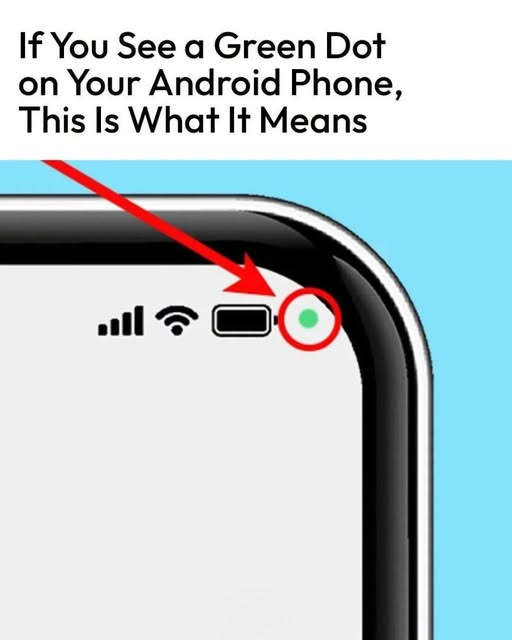
What Does the Green Dot on Your Android Phone Mean? A Simple Privacy Guide
Have you ever noticed a small green dot in the upper-right corner of your Android phone and wondered what it means? You are not alone. This tiny indicator is an important privacy feature designed to help you understand when certain apps are accessing your phone's camera or microphone.
The good news is that seeing the green dot does not automatically mean your phone has been hacked. It usually means an app or system service is using—or has recently used—one of these sensitive features. Here's how to identify what's happening and protect your privacy.
What Does the Green Dot Mean on Android?
On phones running Android 12 or later, the green privacy indicator appears when an app accesses your camera or microphone. Depending on your phone's software, the indicator may first appear alongside a camera or microphone symbol and then become a small green dot.
For example, the indicator may appear when you:
Take a picture or record a video.
Make a video call.
Record a voice message.
Use a voice assistant or voice-recording app.
Join an online meeting that uses your microphone or camera.
The indicator is intended to give you more visibility into how apps use your phone's camera and microphone. It is a privacy warning, not proof that someone is spying on you.
Does the Green Dot Mean Someone Is Watching You?
Not necessarily. Many legitimate apps need access to your camera or microphone to perform their normal functions.
However, if the green dot appears when you are not expecting an app to use either feature, it is worth checking which app is responsible.
The indicator itself does not tell you why an app is accessing a sensor, and it does not prove that your phone has been compromised. Checking the app's identity and permissions is the best next step.
How to Find Out Which App Is Using Your Camera or Microphone
You can usually identify the app directly from your Android screen.
Step 1: Swipe Down From the Top of Your Screen
When the green dot appears, swipe down from the top of your phone to open the notification shade or Quick Settings panel.
Step 2: Tap the Privacy Indicator
On supported Android devices, tap the green indicator or the camera or microphone icon. Your phone should show which app or service is currently using the camera, microphone, or both.
The exact appearance and steps may vary by phone manufacturer and Android version.
Step 3: Review the App's Permissions
If an app is accessing your camera or microphone unexpectedly, open your phone's Settings and look for Privacy, Permission Manager, or Privacy Dashboard.
Review the app's recent access and decide whether it genuinely needs those permissions.
How to Stop an App From Accessing Your Camera or Microphone
If you discover that an app has unnecessary access, you can change its permissions.
Open Settings on your Android phone.
Select Privacy or Security and privacy.
Open Permission Manager or Privacy Dashboard.
Choose Camera or Microphone.
Select the app you want to review.
Change its permission to an option such as Don't allow, if appropriate.
Some Android phones also include Camera access and Microphone access switches in Quick Settings. Turning these off can block access across apps until you turn them back on. Certain essential system functions may be treated differently.
Keep in mind that disabling permissions can prevent video calls, voice messages, and other features from working properly.
What Is the Android Privacy Dashboard?
The Privacy Dashboard provides a useful overview of how apps access sensitive information.
On supported devices, it can show which apps accessed your camera, microphone, and other permissions during a recent period. Android versions and manufacturers may display this information differently.
To use it, open Settings and search for Privacy Dashboard. Review the access history and investigate any activity you do not recognize.
You can also review location permissions and limit access for apps that do not need your location to work.
What If the Green Dot Appears When You Are Not Using an App?
First, check the privacy indicator to identify the app or service. You may discover that a voice assistant, messaging app, or another feature is still using the microphone.
If the activity seems unexpected, take these steps:
Close apps that may still be using the camera or microphone.
Review and revoke unnecessary permissions.
Update Android and your apps.
Uninstall unfamiliar apps you do not trust.
Restart your phone if the indicator remains after you have closed the relevant app.
If the behavior continues, check your phone manufacturer's support guidance or seek help from a trusted technician.
Is the Green Dot Available on Every Android Phone?
No. The indicator was introduced as a standard privacy feature in Android 12, but its appearance and availability depend on the device, software version, and manufacturer.
Older phones may not show the same indicator. Some manufacturers also use different layouts or names for their privacy controls.
If you cannot find the feature, check your Android version and search Settings for camera permissions, microphone permissions, or privacy controls.
Frequently Asked Questions
Does the green dot mean my phone has a virus?
No. The green dot is a built-in privacy indicator on supported Android devices. It normally appears when the camera or microphone is being accessed. If the app responsible is unfamiliar, investigate its permissions rather than assuming your phone has a virus.
Can I turn off the green dot?
The green dot is a system privacy indicator, and most devices do not provide a simple setting to hide it independently. You can usually control camera and microphone access instead.
Can an app use my microphone without showing the green dot?
Android's privacy indicators are designed to alert users when apps access the protected sensors, but behavior can vary by operating system version and device implementation. Keep your phone updated and avoid installing apps from untrusted sources.
Should I remove an app that triggers the green dot?
Not automatically. Camera and microphone access is normal for many apps. If the access is unexpected or the app has no clear reason to use these features, revoke its permission and consider uninstalling it.
Final Thoughts
The green dot on your Android phone is a useful privacy tool that helps you see when an app is using your camera or microphone. It does not automatically indicate hacking or surveillance.
If you notice it unexpectedly, tap the indicator, identify the app, and review its permissions. A few simple checks can help you stay informed and maintain greater control over your phone's privacy.
Helpful tip: Review your camera and microphone permissions every so often, especially after installing new apps.